Cyber-Space-Guide

Please read the tutorial carefully. If we do not reply to you during the off-hours, please don’t rush to give us a bad rating, we are taking a break at the moment. If you have a good attitude towards us, we will definitely serve you hard. Thank you for your support!
IMPORTANT!!!
1. Make sure you have turned off Windows Update as we said!!!!
2. Please get our consent before you want to update the game and enter online mode!!!
3. You must play in offline mode!!!
Ubisoft Platform Guide by Cyber Space
This tutorial will teach you how to log in, setup, download, and play step by step. It’s very simple. Please read carefully, and if you don’t understand, you can pm us in Shopee. Let’s start it.
0. Pause Windows Update until you finish the game or when the game/account is in dropped to low traffic (You can just pause it manually at Windows Update setting):
0.1. Download the Windows Update Pauser reg file we gave:
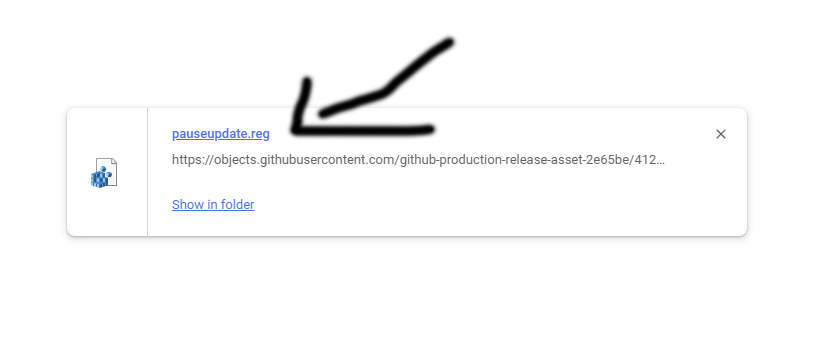
0.2. Run the file to pause Windows Update until 2099, you can resume it at Windows Update Setting in the future.
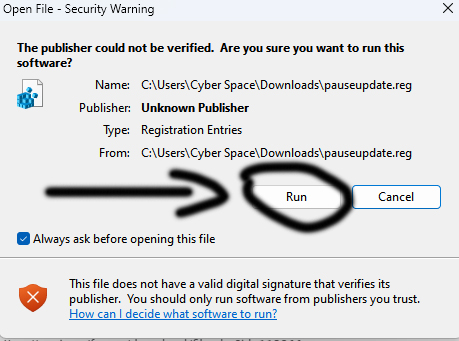
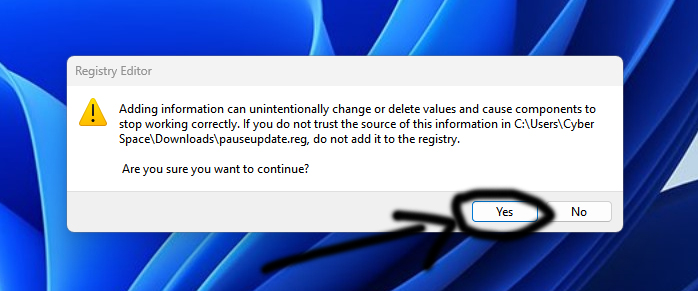
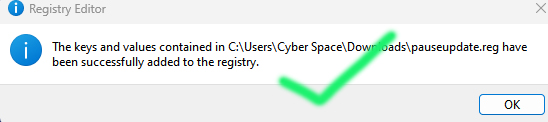
0.3. Done!
1. Download and preparation:
1.1. Download the game files from the link we gave.
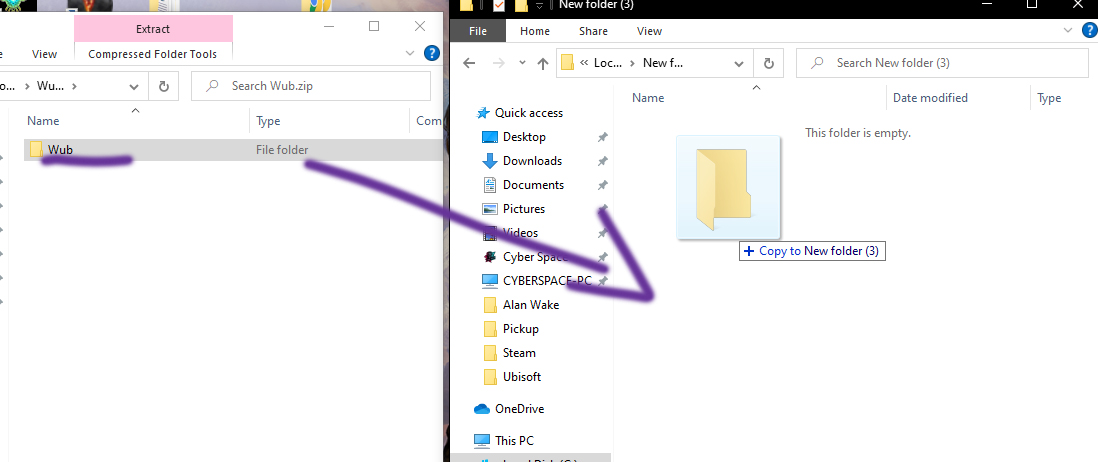
1.2. After finish downloading, open the zip file and extract to a location where you like.

2. Login:
2.1. Download and install Ubisoft Connect.
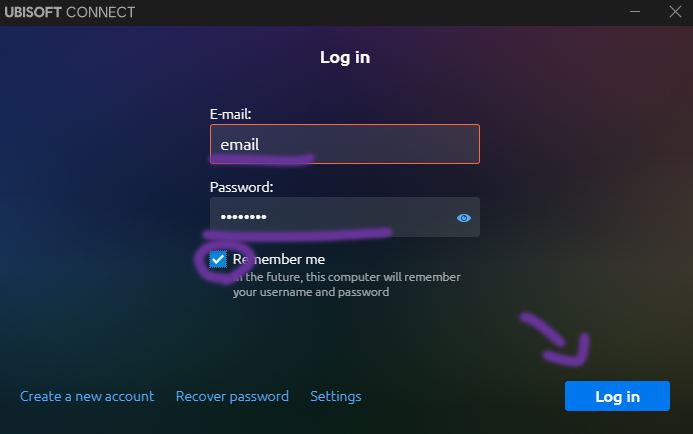
2.2. Get the account from us after you downloaded the game files, tick “Remember me” and login with them.
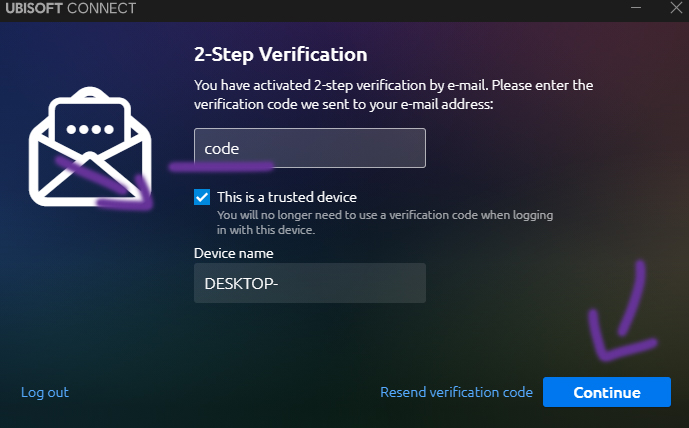
2.3. Get the verification code from us, tick “This is a trusted device”, enter into the boxes and click “Continue”.
Download and install:
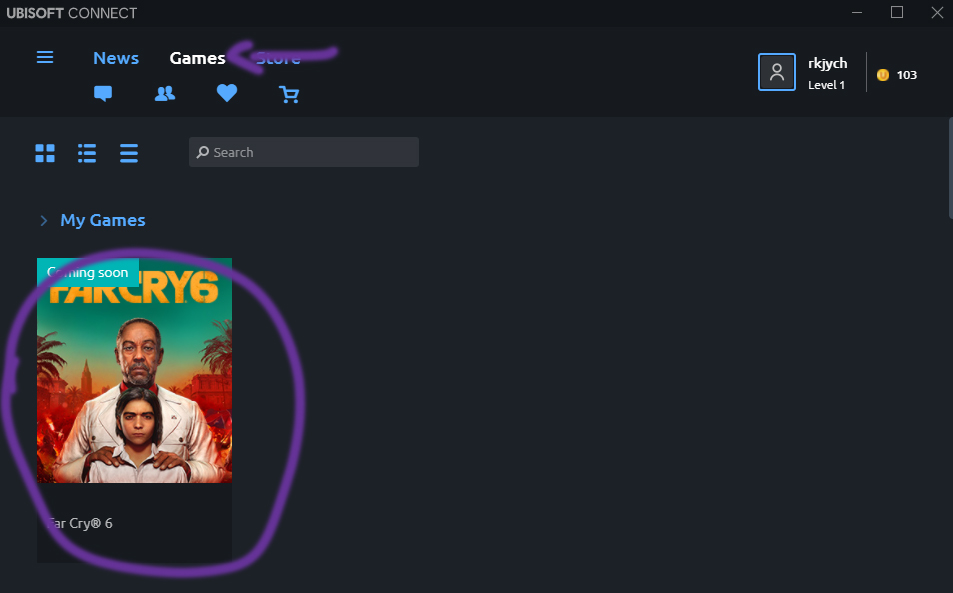
2.4. Select the game you like to install.
2.5. Click “Download”
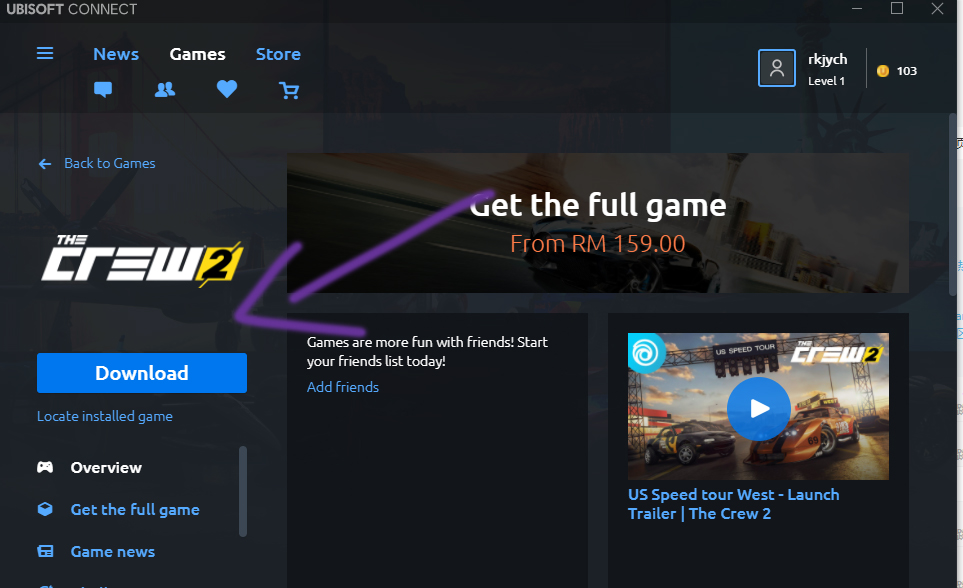
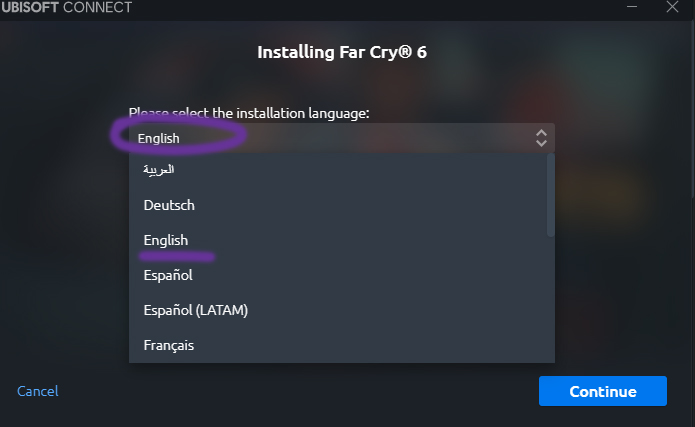
2.6. Select the language you want, and click “Continue”.
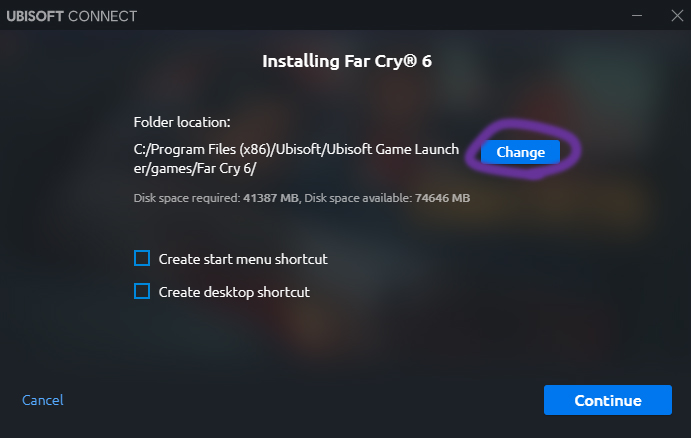
2.7. Change the game location to where the game you extract at, and click “Continue”.
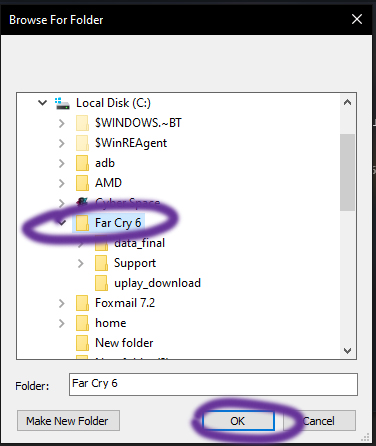
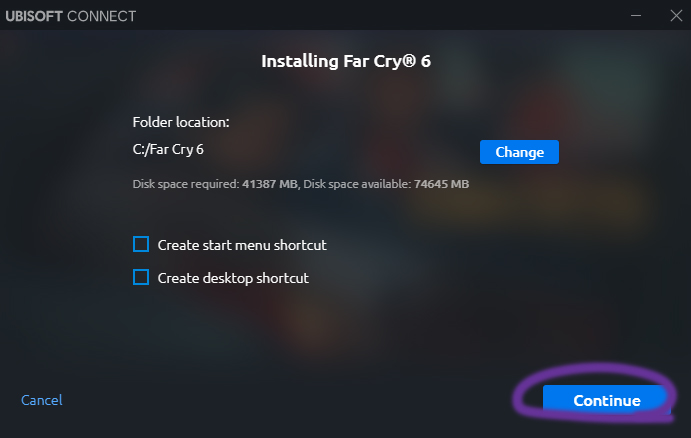
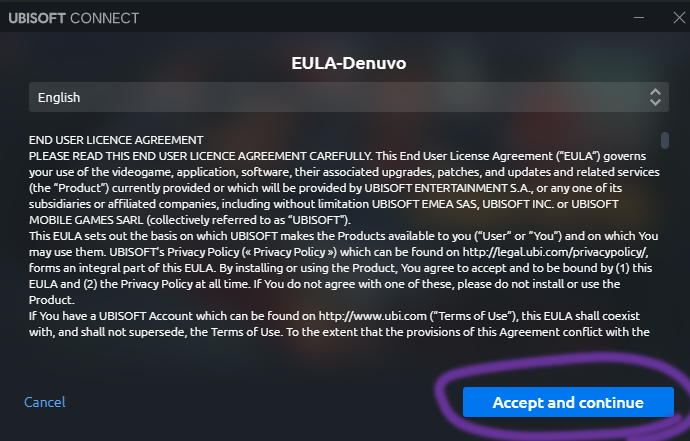
2.8. Wait till finish.
3. Setup:
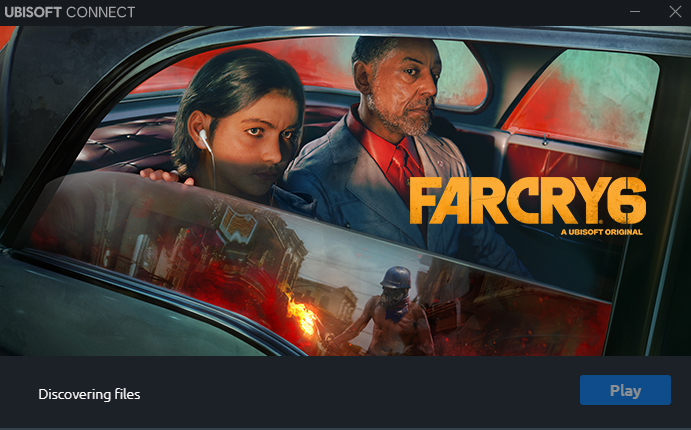
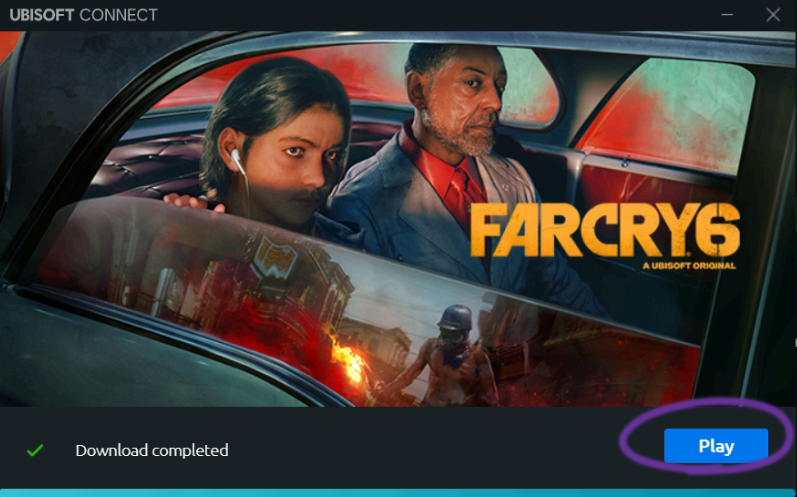
3.0. Click “Play” after the discovery progress is completed. Exit after you enter the game.
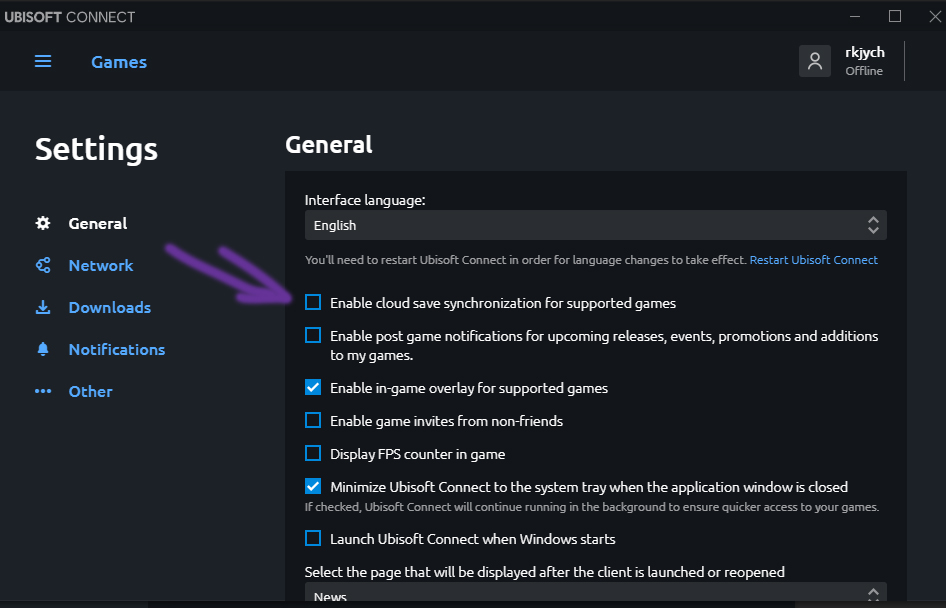
3.1. Click the hamburger at top-left corner, “Settings”, Untick “**Enable cloud save… **”.


3.2. Click the hamburger at top-left corner, and click “Offline”
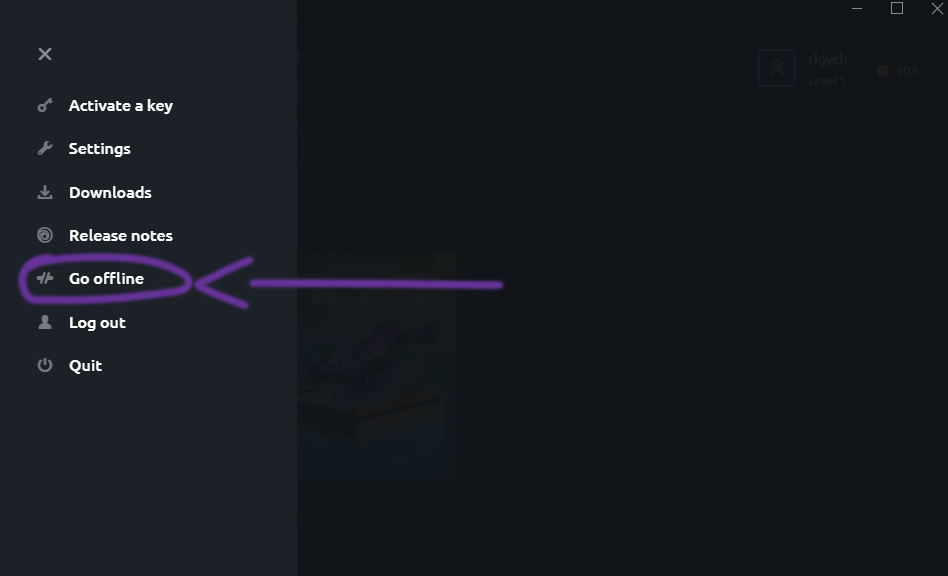
3.3. After offline, click the hamburger again at top-left corner, and click “Log Out”.

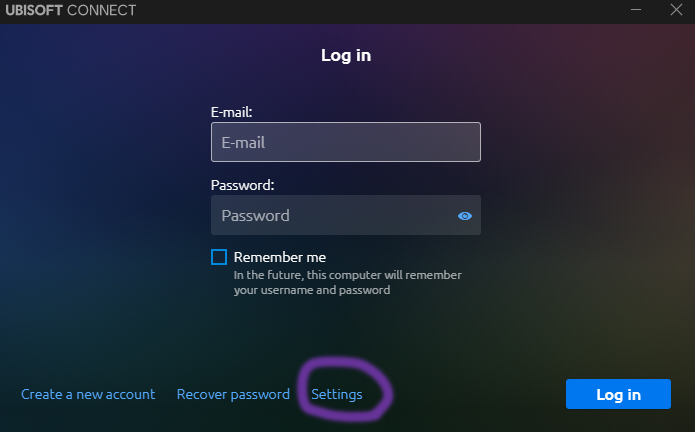
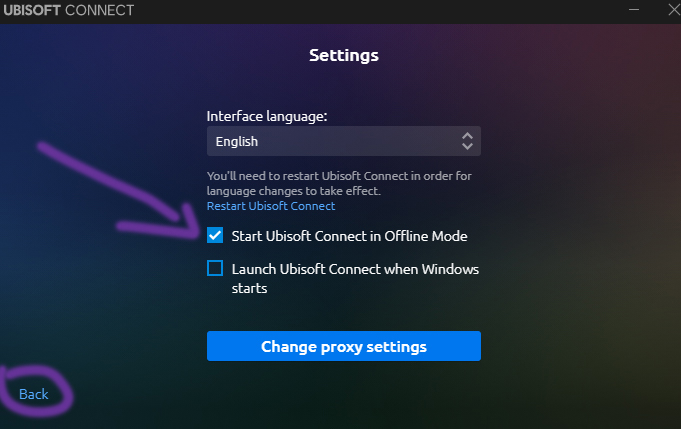
3.4. Click “Settings” below, check “Start Ubisoft Connect in offline mode, “Back”, and login again.” (THIS STEP IS VERY IMPORTANT!!! WE WILL NOT BE RESPONSIBLE IF YOU MISS THIS STEP EVERYTIME YOU LOGIN EXCEPT YOU HAVE AUTOMATICALLY LOGGED IN!!!)
## 4. Play
4.1. After setup complete and entered offline mode, click “Play” and enjoy!